How to Install Lightning Assist: Step-by-Step Guide for All Platforms
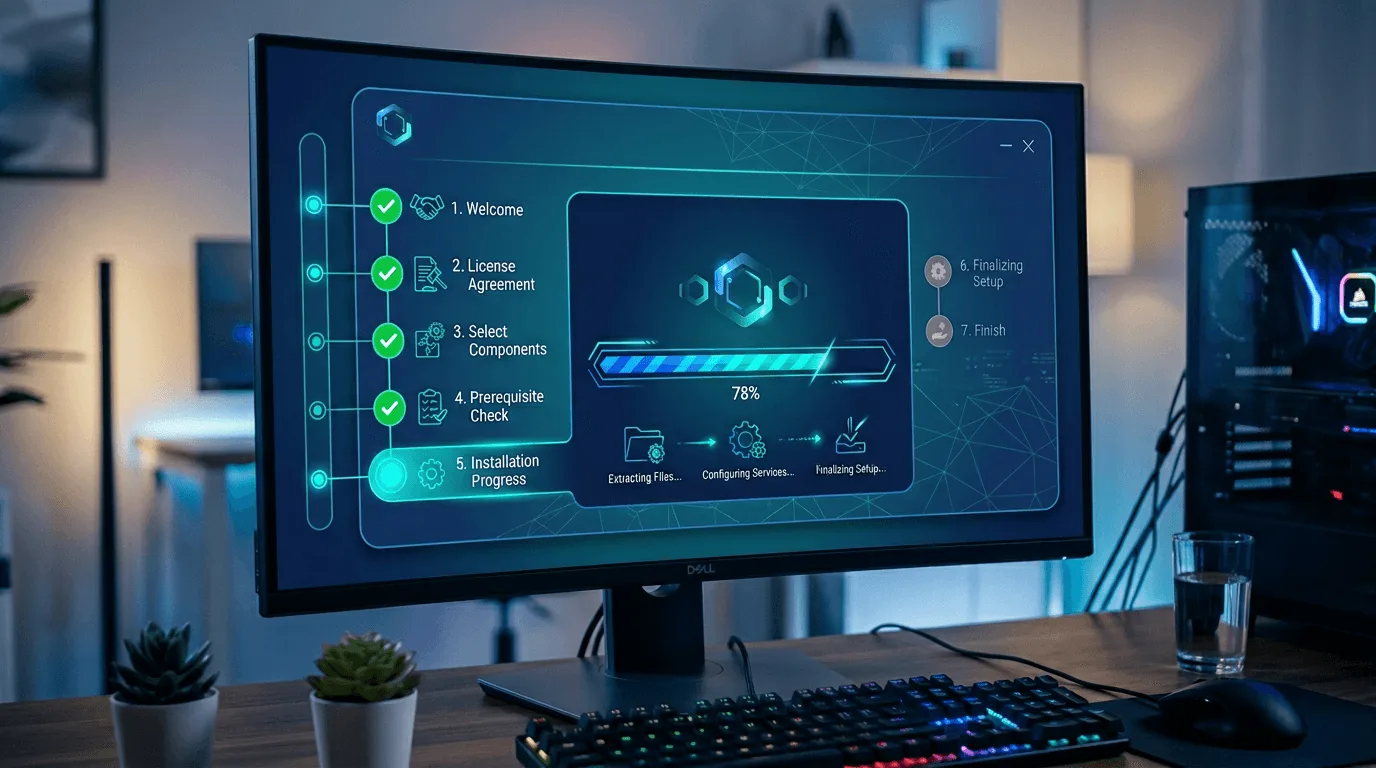
Get Lightning Assist up and running in minutes with this comprehensive installation guide for Windows, macOS, and Linux.
Before You Begin
-
System Requirements:
- Windows 10/11, macOS 12+, or Linux
- Internet connection for initial setup
- Administrator/sudo access for installation
-
Download: Visit our downloads page to get the latest version
-
What you're installing: Lightning Assist is a text expander for Windows, Mac, and Linux — it turns short abbreviations into full blocks of text in any application
Windows Installation
Step 1: Download the Installer
- Go to our downloads page
- Click "Download" for Windows
- The installer file (
Lightning-Assist-Setup-X.X.X.exe) will download
Step 2: Run the Installer
- Locate the downloaded
.exefile - Double-click to run (Windows may ask for permission)
- Follow the installation wizard:
- Choose installation location (default is recommended)
- Click "Install"
- Wait for installation to complete
Step 3: Launch Lightning Assist
- Installation completes automatically
- Lightning Assist launches on first run
- Create your account or sign in
- Start your 14-day free trial!
Troubleshooting Windows
Issue: "Windows protected your PC" warning
- Solution: Click "More info", then "Run anyway" (we're a verified publisher)
Issue: Installation fails
- Solution: Run installer as Administrator (right-click → Run as administrator)
macOS Installation
Step 1: Download the Installer
- Visit our downloads page
- Click "Download" for macOS
- The
.dmgfile will download
Step 2: Install the Application
- Open the downloaded
.dmgfile - Drag "Lightning Assist" to the Applications folder
- Eject the disk image
Step 3: First Launch
- Open Applications folder
- Double-click "Lightning Assist"
- macOS may show a security warning:
- Go to System Settings → Privacy & Security
- Click "Open Anyway"
- Create your account and start your trial!
Troubleshooting macOS
Issue: "Lightning Assist cannot be opened"
- Solution: Right-click → Open (first time only), then click "Open" in the dialog
Issue: App won't launch
- Solution: Check System Settings → Privacy & Security → Allow apps from identified developers
Linux Installation
Option 1: AppImage (Recommended)
- Download the AppImage from downloads page
- Make it executable:
chmod +x Lightning-Assist-*.AppImage - Run the AppImage:
./Lightning-Assist-*.AppImage
Option 2: .deb Package (Debian/Ubuntu)
- Download the
.debfile - Install using:
sudo dpkg -i lightning-assist_*.deb - If dependencies are missing:
sudo apt-get install -f
Post-Installation Setup
1. Create Your Account
- Sign up with email
- Verify your email address
- Start your 14-day premium trial
2. Configure Hotkeys
- Go to Triggers page
- Choose your preferred trigger key combinations
- Test to ensure they work
By default, your snippets expand as you type — no hotkey needed: Lightning Assist ships with As-You-Type Mode turned on. Type your snippet's trigger — the exact text you saved, like
;meetingormeeting— and it expands inline the moment you finish typing it. A leading;is optional and keeps triggers distinct from normal words. Prefer a deliberate trigger instead? Switch to Hotkey Mode (optional) any time. See all activation modes →
3. Create Your First Snippet
- Go to "My Snippets"
- Click "Create Snippet"
- Add a trigger (e.g.,
emailor;email— the trigger is exactly the text you'll type; a leading;is optional and keeps it distinct from normal words) - Add your text content
- Save and test!
Next Steps
- Read our getting started guide
- Learn about AI Commands
- Check out productivity tips
- View our FAQ for common questions
Once installed, explore snippet examples for ready-to-use templates across common workflows — email signatures, support replies, and developer boilerplate.
Need Help?
Ready to boost your productivity? Download Lightning Assist now and start saving hours every day!