How to Stop Typing the Same Emails Every Day

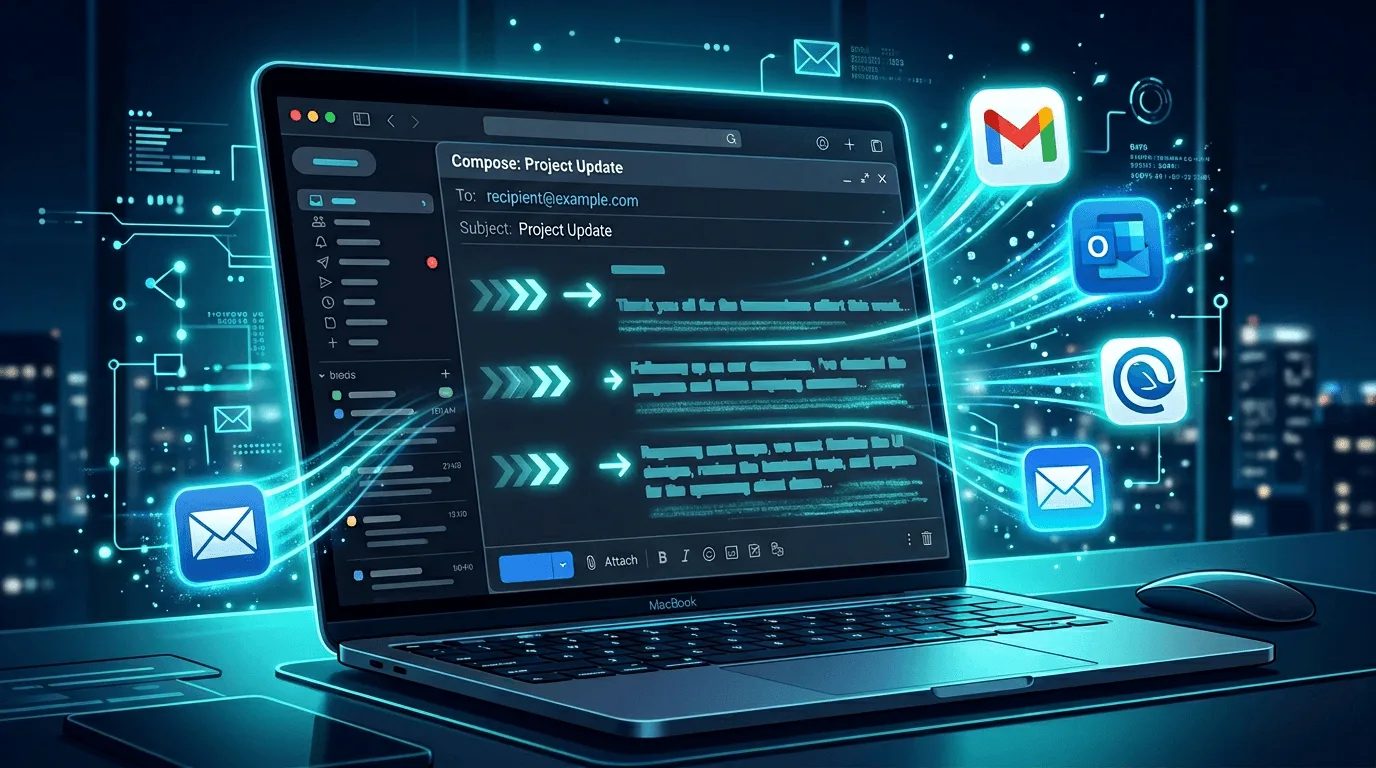
If you open your sent folder and see the same paragraphs dozens of times, you are not alone. Support, sales, HR, and operations teams all burn hours retyping structure that barely changes. The fix is not “type faster”—it is to capture the repeating skeleton once and only type what truly varies each time.
This guide walks through a practical system: what to template, how to name and store snippets, how teams stay consistent, and where text expansion and AI fit without turning every reply into a robot.
Why the same emails keep appearing
Repetition usually comes from three places:
- Policy and compliance – You must include certain wording (refunds, security, legal).
- Process – Tickets move through stages that need the same checklist (onboarding, shipping, handoffs).
- Personality habits – You default to the same warm-up sentences because they feel safe.
The first two are ideal for templates. The third is where you should leave free typing—or you will sound canned when empathy matters.
Step 1: Inventory your top twenty repeats
For one week, keep a lightweight log: subject line pattern, first sentence, and what changed each time (name, order ID, date). You will find that most “unique” emails are 70–90 percent identical. Those blocks are your first snippet candidates.
Do not boil the ocean. Twenty well-maintained snippets beat two hundred stale ones nobody trusts.
Step 2: Separate skeleton from variables
A strong template has:
- Fixed blocks – Policy text, links to help centers, standard next steps.
- Variables – Names, dates, amounts, ticket IDs, one-line personalization.
Use a consistent placeholder style your team agrees on—whether that is {{name}}, bracketed [OrderID], or a short internal convention. The important part is that everyone recognizes placeholders in shared libraries so QA and legal can review them once.
Step 3: Choose where templates live
You have three common layers:
- Inside the app – Gmail templates, Zendesk macros, Outlook Quick Parts. Great for app-specific compliance; bad when the same wording must appear in Slack, CRM notes, and email.
- OS-level text expansion – Works in every text field on your machine. That is what a dedicated text expander is for: one library that follows the user across tools.
- AI-assisted rewriting – You paste a rough bullet list and ask for a polished email. Use this when tone must shift by audience, not when wording must be legally exact.
Many teams combine macros in the ticketing app for tracking plus desktop expansion for everything else. If your workload spans browser tabs and desktop apps, expansion at the OS layer usually pays for itself fastest.
By default, your snippets expand as you type — no hotkey needed: Lightning Assist ships with As-You-Type Mode turned on. Type your snippet's trigger — the exact text you saved, like
;meetingormeeting— and it expands inline the moment you finish typing it. A leading;is optional and keeps triggers distinct from normal words. Prefer a deliberate trigger instead? Switch to Hotkey Mode (optional) any time. See all activation modes →
For email-heavy workflows that already touch Gmail specifically, our walkthrough on canned responses for Gmail shows how templates and AI can coexist without breaking Gmail’s UX.
Step 4: Write templates people will actually use
Templates fail when they are too long or too stiff. Keep each snippet scannable in under ten seconds. Put the human sentence first (“Thanks for sending the logs—here is what we found”) and the boilerplate after.
Add a one-line “escape hatch” for edge cases: “If your situation is different, reply with X and we will adjust.” That reduces fear of sending the wrong macro.
💡 Typing the same emails in Gmail, Slack, and your CRM every day? Lightning Assist puts your reply templates in every app at once — one shortcut, any text field. Try free for 14 days → — no credit card.
Step 5: Team governance without bureaucracy
Shared libraries need an owner: usually support ops or a team lead, not “everyone.” Rotate a monthly review: archive snippets tied to retired products, update links, and align wording with marketing.
Document in your internal wiki:
- Where the master library lives.
- How to propose changes (pull request, ticket tag, etc.).
- When to never use a snippet (escalations, legal threats, VIP accounts).
Link new hires to a single product overview—our homepage is written for that kind of handoff—so they understand the tool stack before they memorize keys.
Quality: sound personal, stay compliant
Run spot checks weekly: are agents filling every bracket? Are they skipping the snippet when the ticket clearly needs a bespoke answer? The goal is not maximum template usage—it is minimum retyping while keeping CSAT stable.
If you are building a broader automation narrative for leadership, automate repetitive emails frames the business case in outcomes (time saved, fewer errors) rather than feature lists.
When to add AI
Use AI when you need variation on a stable fact pattern: rewriting the same update in softer tone, translating a paragraph, or turning bullet notes into a client-ready email. Do not use AI for numbers, legal text, or regulated content without a human pass.
For a deeper dive into prompt habits, see mastering AI commands—it pairs well once your static templates are already in place.
Failure modes (and how to avoid them)
Template sprawl – Snippets multiply until nobody trusts the library. Fix it with ruthless archiving: if a key was not used in thirty days, move it to a “deprecated” folder or delete it.
Tone mismatch – Sales borrows support macros and sounds defensive. Split libraries by department or tag folders clearly (“CX / Billing / Sales”) so people insert the right voice.
Paste-and-forget – Agents send the wrong ID because they skipped a placeholder. Add a mental step: “two-second scan” before send. Coaching beats new software when the bottleneck is discipline.
Tool fragmentation – Email-only templates in Gmail do not help in Discord or Salesforce notes. If your day crosses systems, prioritize canned responses as a product concept—then implement snippets where the cursor actually lives: usually the desktop.
What to measure
You do not need perfect analytics on day one. Track median first-response time and repeat-contact rate for two sprints after rollout. If responses get faster without more follow-up tickets, your templates are doing their job. Pair qualitative feedback (“sounds robotic”) with those numbers so you tune phrasing, not just shortcuts.
Pricing and rollout reality
Text expansion and AI features usually scale with seats and credits. Before you commit, align finance and IT on pricing and make sure pilot users can install from one place: our downloads page tracks current builds for Windows, macOS, and Linux.
Checklist you can paste into Notion
- Logged top repeats for one week
- Built twenty snippets with clear placeholders
- Assigned a library owner and review cadence
- Trained the team on when not to template
- Linked internal docs to pricing and installers for stakeholders
Ready to cut repetition across every app? Download Lightning Assist and pair desktop text expansion with AI when you need a fresh sentence—not a fresh career retyping the old ones.