How to Automate Gmail Responses with AI

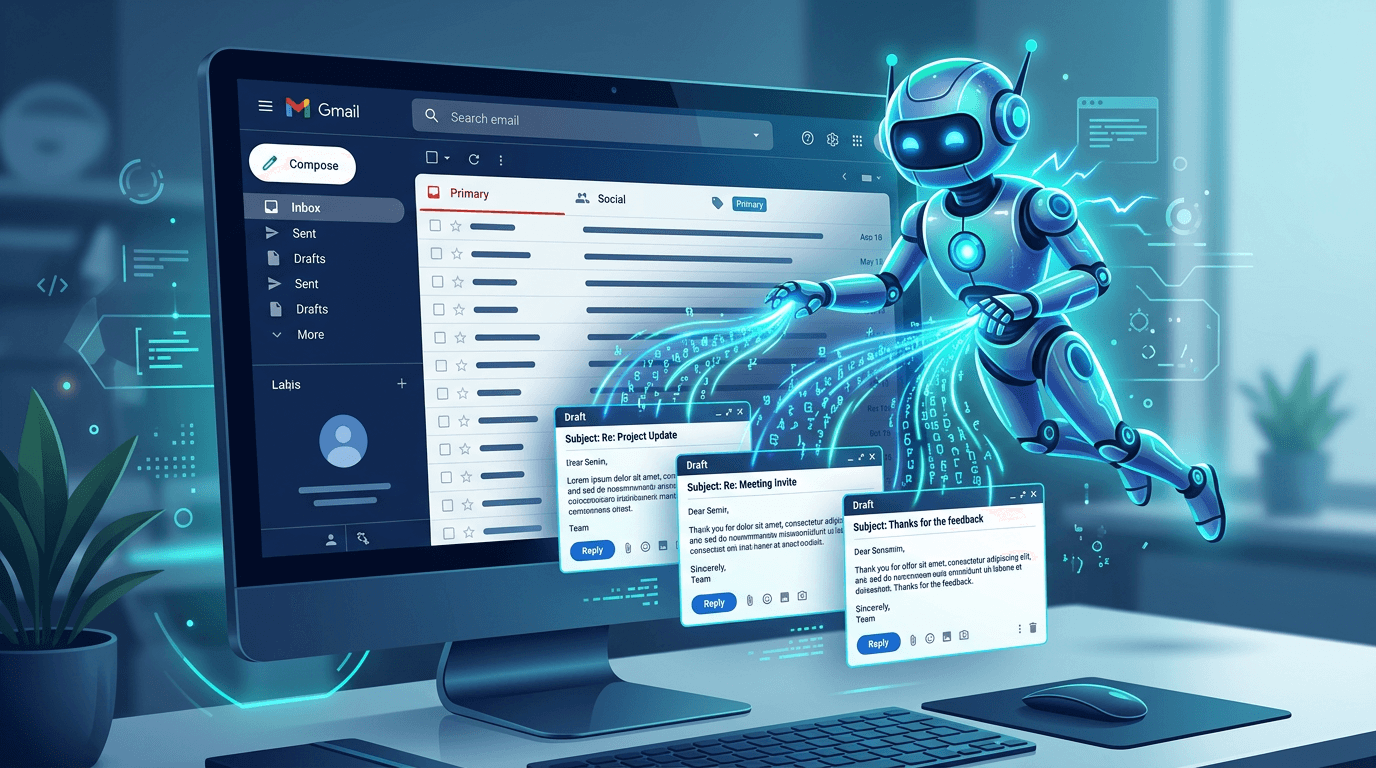
You can automate Gmail responses with AI in two main ways: (1) templates that you trigger with shortcuts and (2) AI that rewrites or adapts text on the spot. Together they let you reply faster without sounding like a bot. Here’s how to set it up and what to use.
What “Automate Gmail Responses” Really Means
Full automation (e.g. bots that send replies without you) is rarely what small teams or solopreneurs want. You usually want:
- Faster replies – Type a shortcut and get a full reply or block of text.
- Easy tweaks – Change tone or length with one click (AI) instead of retyping.
- Consistency – Same quality and style for common situations.
- You still hit Send – You choose when and what goes out.
So “automate” here means: templates + AI to adapt them, not hands-off bots. You stay in control; the tool does the repetitive typing and quick edits.
Two Building Blocks: Templates and AI
1. Templates (Text Expansion)
You define a short key (e.g. thanks, followup, meeting) that expands into a full reply or paragraph. In Gmail (web or any app), you type the key, press your trigger (e.g. Tab or a hotkey), and the text is inserted. Use replacement variables in Lightning Assist’s format [#VariableName#] (e.g. [#Date#], [#Name#]) so one template works for many emails: when you execute the snippet, a prompt appears for each variable.
2. AI to Adapt the Template
Sometimes the template is almost right but needs to be shorter, friendlier, or more formal. Instead of retyping, you select the text and run an AI command: “make it shorter,” “more professional,” “friendlier.” The AI rewrites it; you review and send. That’s “automate Gmail responses with AI” in practice: template + one-click variation.
Why Use a Desktop Tool in Gmail?
Gmail add-ons and extensions only work inside Gmail (and sometimes only in the browser). A desktop text expander with AI works in:
- Gmail in the browser
- Gmail in a desktop app (if you use one)
- Outlook, Slack, Notion, and any other app
So you get the same shortcuts and AI everywhere. One set of templates for email, chat, and docs. Lightning Assist is a desktop tool that works in Gmail and every other app where you type.
Step-by-Step: Automate Gmail Responses with AI
Step 1: Install a Desktop Text Expander with AI
Choose a tool that does both text expansion and AI on selected text, and that works in the browser (where Gmail usually lives). Download Lightning Assist for Windows, Mac, or Linux and install it. It works in Gmail web and in any other app.
Step 2: Create Your First Response Templates
Think of your 5–10 most common Gmail replies, for example:
- “Thanks, I’ll get back to you by [#Date#].”
- “Following up on my previous email…”
- “Would you have 15 minutes for a quick call this week?”
- A short support acknowledgment.
Create one snippet per reply: give it a key (e.g. thanks, followup, meeting) and paste the full text. Add replacement variables in Lightning Assist’s format, e.g. Thanks, I’ll get back to you by [#Date#]. When you run the snippet, you’re prompted to fill in each [#VariableName#]. For today’s date without a prompt, use the built-in Today’s Date placeholder from the editor’s Insert menu. Lightning Assist snippets support these dynamic replacements.
Step 3: Set Your Trigger
In the tool’s settings, set the trigger (e.g. Tab or a hotkey) that expands the abbreviation. In Gmail, you’ll type the key and press that trigger to insert the full reply.
Step 4: Use AI to Tweak When Needed
When the template is close but not quite right:
- Select the inserted text in Gmail.
- Run an AI command: “make it shorter,” “more formal,” “friendlier,” etc.
- The tool rewrites the selection; you edit if needed and send.
That way you automate the bulk of the reply and use AI for quick adaptation. Lightning Assist AI commands work in Gmail and any app.
Step 5: Add More Templates Over Time
As you notice more repeated phrases, add new snippets. Over time you’ll have a library of Gmail responses that you can trigger in seconds and adjust with AI when necessary.
What to Automate First in Gmail
- Acknowledgments – “Thanks for your email, I’ll respond by [#Date#].” (prompted for date when you run the snippet)
- Follow-ups – “Just following up on my message from [#Date#]…”
- Meeting requests – One standard sentence or two; add your link or times manually.
- Short support replies – Your most common 3–5 answers.
- Signature – One snippet that works in Gmail and everywhere else.
Keep the tone and wording yours; use automation to avoid retyping.
Staying Personal and On-Brand
- Use templates for the structure and repeated parts; add a sentence or two by hand when it matters.
- Use AI to adjust tone or length, not to generate whole emails from zero unless you’re fine editing.
- Always skim before sending. You’re still the one replying; the tool just speeds you up.
Summary
To automate Gmail responses with AI:
- Use text expansion for your most common replies (templates with variables).
- Use AI on selection to shorten, formalize, or soften when one template doesn’t quite fit.
- Use a desktop tool so the same shortcuts and AI work in Gmail and in your other apps.
You reply faster and stay in control. To try it, download Lightning Assist, create a few Gmail response snippets, and use AI commands when you need a quick tweak.