Best Free Tools to Automate Typing on Windows (2026)

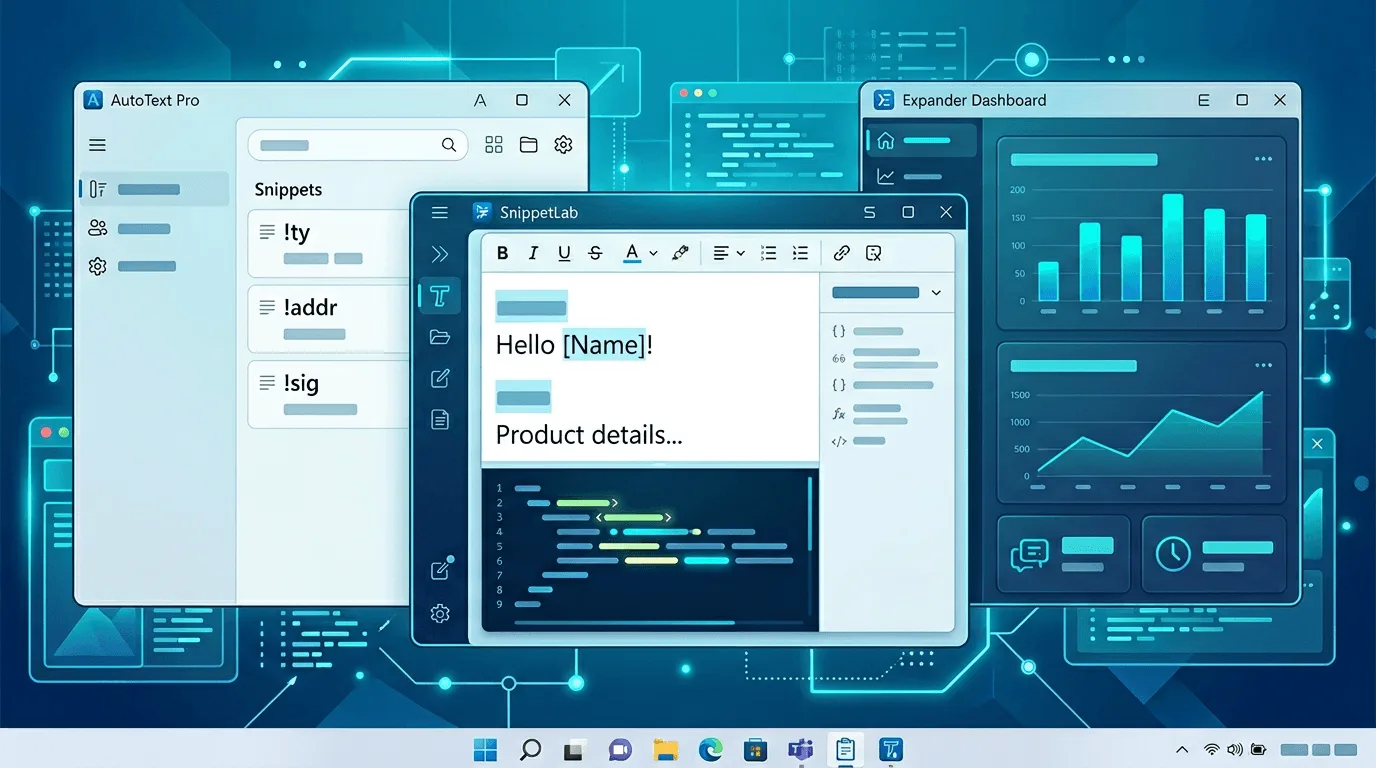
“Free” and “saves an hour a day” rarely overlap perfectly—especially on Windows, where good automation usually costs either money or learning time. Still, you can get surprisingly far with zero upfront spend if you pick the right layer: clipboard tricks, hotkey scripts, or open-source text expansion.
This guide lists honest free options, what each is best at, and when upgrading to a dedicated text expander for Windows pays for itself. For a broader market snapshot, our roundup of best text expanders for Windows in 2026 sits next to this one: read that page for product comparisons, and this one for free-first tactics.
What you are automating (pick the right tool)
Roughly three buckets:
- Short phrases – Signatures, addresses, “thanks—here is the link.”
- Structured blocks – Support replies, onboarding emails, boilerplate with placeholders.
- Cross-app workflows – Same snippet in Chrome, Outlook, VS Code, and Notion.
Clipboard tools are fine for (1). Text expansion is purpose-built for (2) and (3). Scripting tools like AutoHotkey can do everything but carry a maintenance tax.
Microsoft PowerToys: PowerToys Run and Text Extractor (and more)
PowerToys is free, official, and maintained by Microsoft. It is not a classic text expander, but two modules help typing workflows:
- PowerToys Run – Keyboard launcher for apps, files, and commands. Less about “insert paragraph,” more about reducing mouse travel.
- Text Extractor – OCR from screen regions—useful when you need to quote error text without retyping.
Pair PowerToys with a good snippet tool if you want expansion; PowerToys alone will not replace TextExpander-style libraries.
AutoHotkey (AHK): maximum power, maximum responsibility
AutoHotkey is free, open-source, and ubiquitous among power users. You can map hotstrings (::btw::by the way) or build entire windows-management workflows.
Pros: Infinite flexibility; no subscription; huge community scripts.
Cons: You are the maintainer; upgrades can break scripts; sharing snippets with non-technical teammates is painful.
If you want the same outcomes without maintaining code, read AutoHotkey alternative without coding—it explains how text expansion covers many of the same “hotstring” wins with a GUI.
For a head-to-head product framing (not only free vs paid), see Lightning Assist vs AutoHotkey.
Espanso: open-source text expansion
Espanso is a popular cross-platform expander with YAML configs. It is a strong free entry point if you like declarative files and community packages.
Watch-outs: when something breaks—updates, permissions, or app focus—debugging is on you. Our troubleshooting guide Espanso not working—fixes lists the failure modes we see most often on Windows.
Clipboard managers (ditto, ClipClip, etc.)
Clipboard history tools reduce re-copying of recent text. They are weak for stable templates you need months later unless you invest time in pinning and organizing clips.
Use them as a complement, not a replacement, for snippet libraries. For a task-by-task breakdown, including what the built-in Win+V history already covers, see text expander vs clipboard manager.
Sticky Notes, Notepad, and “documentation debt”
Many teams start by keeping boilerplate in a Notepad file or Sticky Notes. That is free and easy—until version control disappears: someone edits line three, someone else keeps an older file on their desktop, and customers get conflicting wording.
If you use this approach temporarily, treat the file like code: one owner, one location (SharePoint, Drive, or Git), and a monthly diff review. The moment more than five people rely on it, graduate to shared snippets or a real expansion tool.
Built-in Windows shortcuts (limited but real)
Replace text as you type (older Control Panel / IME features) and custom dictionaries help in some fields but rarely follow you into every browser tab and Electron app. They are worth enabling for personal corrections—common typos, long product names—but they will not replace a snippet library for multi-sentence replies.
PowerShell and scripting (enterprise angle)
IT teams sometimes wire PowerShell or scheduled tasks to push files, reset configs, or sync Espanso packages. That is powerful and free internally, but end users should not depend on bespoke scripts for everyday typing. If automation requires a ticket to IT every quarter, it is not really “free” anymore.
Espanso vs commercial expanders (plain English)
Espanso gives you files on disk and community packages. Commercial tools give you accounts, sync, and support—valuable when compliance asks who edited the refund macro and when.
Neither is “wrong.” Choose Espanso when you enjoy YAML and self-hosting; choose a commercial stack when you need audited team folders and someone to call when a Windows update breaks injection.
💡 Free tools not cutting it for team sharing, AI, or cross-app coverage? Lightning Assist covers all three — one installer for Windows, macOS, and Linux. Try free for 14 days → — no credit card.
Windows Quick Parts (Office only)
If you live inside Word and Outlook, Quick Parts and signatures are free and well integrated. The moment you leave Office—Slack, browser CRM, VS Code—those templates stay behind. For org-wide reuse, desktop expansion still wins.
“Free” vs time saved: when to pay
Free tools shine for individuals and experiments. Teams usually hit governance limits: no shared audited library, no role-based permissions, no unified onboarding.
Commercial text expander stacks add sync, team folders, and often AI-assisted rewriting. That is not free—but neither is an hour of senior support time spent fixing AHK after a Windows update.
Compare total cost honestly: engineer time + error rate + onboarding friction. If free tools cost three hours a month in maintenance, a paid seat often clears the bar.
Lightning Assist: full stack, trial-first
We build Lightning Assist as a desktop assistant: text expansion, AI commands, and speech where appropriate—not a single free utility, but one installer with a structured trial. Start from downloads; commercial plans and credits are listed on pricing. For the executive summary of the product, see the homepage.
By default, your snippets expand as you type — no hotkey needed: the default mode on the app's Activation screen is Inline. Type your snippet's shortcut, like
;meeting, and it is replaced as you type. A leading symbol such as;keeps shortcuts distinct from normal words. Inline has two styles: Instant fires the moment the shortcut is complete, and After space waits for a space. Prefer a deliberate key instead? Switch to Hotkey: type the shortcut, then press your hotkey. See all activation modes →
Decision matrix (quick)
| Need | Good free start | Consider upgrading when |
|---|---|---|
| Hotstrings for one user | AHK or Espanso | You need shared team libraries |
| OCR / launcher | PowerToys | You need snippet sync across devices |
| Office-only templates | Quick Parts | You work across web + desktop apps |
| Minimal typing, no install | Clipboard manager | You need compliance-reviewed text |
Setup tips that work regardless of tool
- Start with ten snippets, not a hundred.
- Namespace keys (
cx-,sale-) to avoid accidental fires. - Review placeholders before send—especially for IDs and amounts.
- Document keys in a shared page so teammates are not guessing.
Related reading on this site
- Automate repetitive typing – habit and workflow framing.
- Reusable text templates for any app – design rules for libraries.
- How to stop typing the same emails every day – email-specific patterns.
Checklist
- Chosen one free baseline (Espanso, AHK, or PowerToys)
- Created ten high-signal snippets or hotstrings
- Measured time saved vs maintenance time
- Decided whether team features justify moving to paid expansion
- If going paid, reviewed pricing and installer from downloads
Want one installer across Windows, macOS, and Linux with team-ready libraries? Download Lightning Assist or compare plans on pricing.