Text Expansion for Writers: Boost Your Writing Productivity

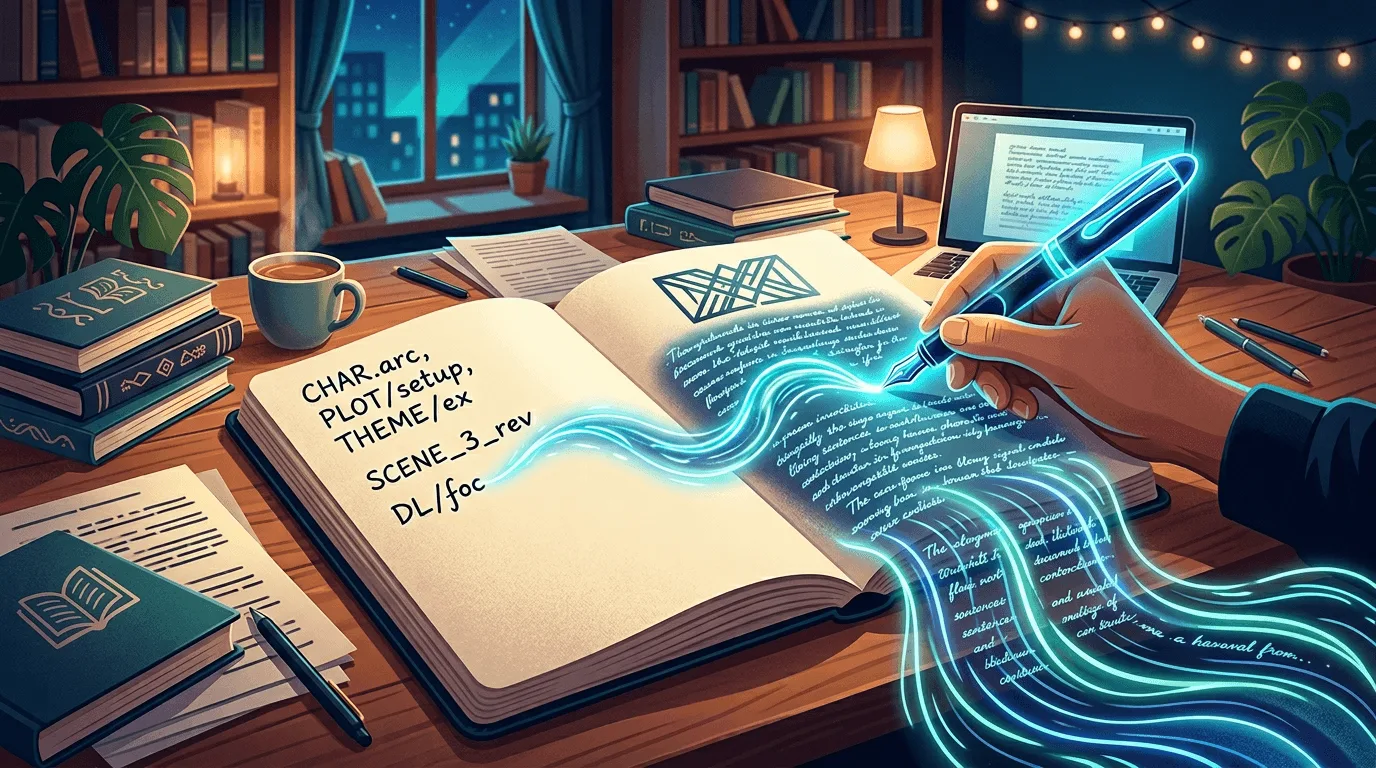
Writers face unique challenges: tight deadlines, repetitive phrases, and the need for consistency. Text expansion can transform your writing workflow and save hours every week.
Why Writers Need Text Expansion
Common Writing Challenges
- Repetitive phrases: Email signatures, disclaimers, boilerplate text
- Consistent formatting: Headers, footers, citations
- Quick responses: Client communications, follow-ups
- Research snippets: Facts, quotes, references
- Style consistency: Brand voice, tone guidelines
Essential Snippets for Writers
1. Email Templates
Client Communications: Create snippets with keys like:
client-follow→ Professional follow-up templateclient-invoice→ Invoice request templateclient-thanks→ Thank you message
Type the key and it expands inline as you type — no hotkey needed (or press your trigger key in Hotkey Mode).
By default, your snippets expand as you type — no hotkey needed: Lightning Assist ships with As-You-Type Mode turned on. Type your snippet's trigger — the exact text you saved, like
;meetingormeeting— and it expands inline the moment you finish typing it. A leading;is optional and keeps triggers distinct from normal words. Prefer a deliberate trigger instead? Switch to Hotkey Mode (optional) any time. See all activation modes →
Pitch Templates: Create snippets with keys like:
pitch-intro→ Introduction templatepitch-outro→ Closing templatequery-letter→ Query letter template
Type the key and it expands inline as you type — no hotkey needed (or press your trigger key in Hotkey Mode).
2. Formatting Templates
Article Structure: Create snippets with keys like:
article-intro→ Introduction paragraph templatearticle-outro→ Conclusion templatearticle-cta→ Call-to-action template
Type the key and it expands inline as you type — no hotkey needed (or press your trigger key in Hotkey Mode).
Citations and References: Create snippets with keys like:
citation-apa→ APA citation formatcitation-mla→ MLA citation formatfootnote→ Footnote template
Type the key and it expands inline as you type — no hotkey needed (or press your trigger key in Hotkey Mode).
3. Research Snippets
Facts and Data: Create snippets with keys like:
stat-2024→ Key statistics for 2024quote-inspire→ Inspirational quotesdata-source→ Data source references
Type the key and it expands inline as you type — no hotkey needed (or press your trigger key in Hotkey Mode).
4. Brand Voice
Consistent Messaging: Create snippets with keys like:
brand-tagline→ Company taglinebrand-values→ Core values statementbrand-bio→ Author/company bio
Type the key and it expands inline as you type — no hotkey needed (or press your trigger key in Hotkey Mode).
Advanced Techniques for Writers
1. Dynamic Content with AI
Use AI commands for dynamic content. Lightning Assist is a text expander built for writers — it pairs snippet expansion with AI so you can draft, rewrite, and polish without leaving your editor. Highlight the text, then press your AI Command hotkey (customizable, e.g., Ctrl+Alt+R) to open the AI Command window, then enter:
- Content generation: "write intro from text"
- Rewriting: "improve text"
- Summarizing: "summarize it"
- Expanding: "expand it"
2. Voice-to-Text for Drafting
Use push-to-talk voice-to-text to speak your first draft into any app — faster than typing and easier on your hands during long writing sessions.
- Dictate first drafts
- Speak faster than typing
- Capture ideas quickly
- Edit after transcription
3. Multi-Document Workflows
Organize by Folders within My Snippets page:
Project Alpha/- Client-specific snippetsProject Beta/- Different client snippetsPersonal/- Personal writing snippets
Real-World Use Cases
Content Writers
Blog Posts:
- Article templates
- SEO meta descriptions
- Social media snippets
- Internal linking phrases
Writers who templatize repeated blocks typically reclaim meaningful time each week.
Technical Writers
Documentation:
- Code examples
- API documentation templates
- Error message formats
- User guide structures
Copywriters
Marketing Copy:
- Headline formulas
- CTA variations
- Product descriptions
- Social media posts
Best Practices
1. Organize snippets into folders by Writing Type
Client/
Personal/
Tech/
Lifestyle/
Proposals/
Contracts/
2. Use Descriptive Snippet Keys
Good: client-follow-up, article-intro-tech (descriptive and clear)
Bad: a1, temp1 (too vague and hard to remember)
Remember: Snippet keys are simple identifiers without semicolons or special characters.
3. Keep Templates Updated
- Review quarterly
- Update based on feedback
- Archive old versions
- Document changes
4. Combine with AI
- Use templates as starting points
- Enhance with AI commands
- Maintain brand voice
- Personalize for context
Productivity Tips
Speed Writing
- Create snippet library: Build your most-used phrases
- Use hotkeys: Trigger snippets instantly
- Combine snippets: Chain multiple snippets
- AI enhancement: Improve with AI commands
Consistency
- Brand voice snippets: Maintain tone
- Style guide snippets: Formatting rules
- Terminology snippets: Consistent terms
- Citation snippets: Proper formatting
Measuring Success
Track your improvements:
- Time saved: Hours per week
- Consistency: Reduced errors
- Speed: Words per hour
- Quality: Client feedback
Getting Started
- Identify repetitive text: List your most-typed phrases
- Create first 10 snippets: Start with essentials
- Practice: Use snippets daily
- Expand: Add more as needed
Next Steps
- Download Lightning Assist - Start your free trial
- Read our getting started guide
- Learn about AI Commands
- Check productivity tips
Ready to transform your writing workflow? Get started today and save hours every week!
Sources
- Noy, S. & Zhang, W. (2023). Experimental evidence on the productivity effects of generative artificial intelligence. Science. — 40% writing-time reduction with AI assistance
- McKinsey (2023). The economic potential of generative AI: The next productivity frontier. — content writing as a primary genAI use case