Lightning Assist vs AutoHotkey: Text Expansion Comparison

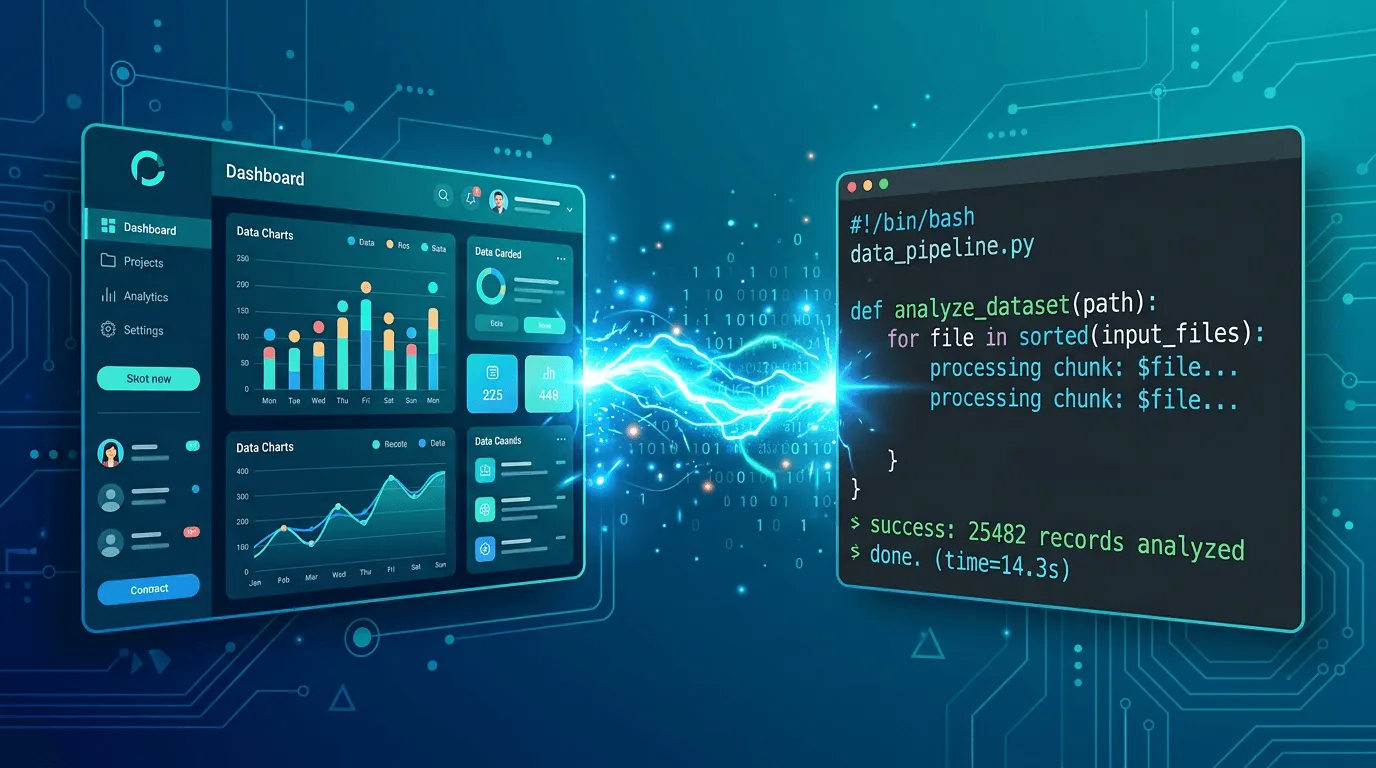
Both Lightning Assist and AutoHotkey can automate typing, but they serve different needs. Let's compare them to help you choose the right tool.
Quick Comparison
| Feature | Lightning Assist | AutoHotkey |
|---|---|---|
| Platform | Windows, macOS, Linux | Windows only |
| Ease of Use | GUI, no coding | Requires scripting |
| Text Expansion | Built-in | Requires scripts (::trigger::text) |
| AI Commands (rewrite, enhance) | ✅ Premium + AI Credits | ❌ Not native |
| Voice-to-Text | ✅ Push-to-talk — free tier, AI Credits | ❌ Not native |
| Cloud Sync | ✅ Yes | ❌ Not native |
| Team Features | ✅ Yes | ❌ Not native |
| Cost | $5.99/mo base; AI features metered via AI Credits | Free (open source) |
| Learning Curve | Low | High |
Detailed Comparison
Ease of Use
Lightning Assist:
- No coding required: point-and-click interface for creating snippets
- Quick setup: first snippet works in under a minute
- Visual editor for snippet content and triggers
- Works on first launch with no configuration
AutoHotkey:
- Scripting language required: hotstrings and hotkeys are written as
.ahkscript - Custom scripting syntax: AutoHotkey uses its own scripting language to build automations
- Manual setup: each trigger and behavior is configured in code
- Better suited to users comfortable with reading and writing scripts
Text Expansion
Lightning Assist:
- Create a snippet with key
emailcontaining your full email signature - Type
emailin any application and it expands inline as you type — no hotkey needed (or press your trigger key in Hotkey Mode, customizable) - Or press
Alt+Cto open Quick Access and search for it - Works instantly across all platforms
By default, your snippets expand as you type — no hotkey needed: Lightning Assist ships with As-You-Type Mode turned on. Type your snippet's trigger — the exact text you saved, like
;meetingormeeting— and it expands inline the moment you finish typing it. A leading;is optional and keeps triggers distinct from normal words. Prefer a deliberate trigger instead? Switch to Hotkey Mode (optional) any time. See all activation modes →
AutoHotkey:
::;email::Your full email signature here
Requires writing and maintaining scripts. Windows only.
Platform Support
Lightning Assist:
- Native desktop apps for Windows, macOS, and Linux
- Cloud sync across devices
AutoHotkey:
- Windows-only (v1 and v2)
- No native macOS or Linux build
- No built-in cloud sync — script files are shared manually
💡 Locked to Windows scripts? Lightning Assist gives you the same text expansion and hotkeys through a GUI — no coding, and it follows you to Mac or Linux if you ever switch. Try free for 14 days → — no credit card.
Advanced Features
Lightning Assist:
- AI Commands — rewrite, enhance, translate selected text with a hotkey (Premium + AI Credits)
- Push-to-talk voice-to-text — dictate anywhere on your desktop (free tier, AI Credits)
- Team snippet sharing — share and sync your library with colleagues
- Cloud sync across devices
- Modern GUI via the snippet editor
AutoHotkey:
- Advanced automation (beyond text)
- Window manipulation
- Mouse automation
- System-level automation
- Highly customizable
Use Cases
Choose Lightning Assist if you want:
- Quick text expansion setup
- AI-powered features
- Cross-platform support
- Team collaboration
- Voice-to-text
- No coding required
- Modern interface
Choose AutoHotkey if you need:
- Advanced Windows automation
- Complex scripting
- Free/open-source solution
- System-level control
- Custom automation workflows
- Windows-only solution
- Technical flexibility
Real-World Scenarios
Scenario 1: Quick Text Expansion
Lightning Assist:
- Create snippet in 30 seconds
- Start using immediately
- Works across all platforms
AutoHotkey:
- Write script (5-10 minutes)
- Test and debug
- Windows only
- Requires maintenance
Scenario 2: Team Collaboration
Lightning Assist:
- Share snippets with team
- Cloud sync
- Role-based permissions
- Easy onboarding
AutoHotkey:
- Share script files manually
- No built-in collaboration
- Each user must install/configure
- Version control challenges
Scenario 3: AI-Powered Content
Lightning Assist:
- Press your AI Command hotkey (customizable, e.g.,
Ctrl+Alt+R) to open the AI Command window - Enter: "write email: [context]"
- Dynamic content generation
- Voice-to-text available
AutoHotkey:
- No AI features
- Static text only
- No voice capabilities
Migration from AutoHotkey
If you're switching from AutoHotkey:
- Export your hotstrings: Copy your
::trigger::textpatterns - Recreate in Lightning Assist:
- Create new snippet
- Set trigger (same or similar)
- Paste text content
- Test thoroughly: Verify all triggers work
- Enjoy new features: AI, voice-to-text, cloud sync
When to Use Both
Some users use both:
- AutoHotkey: Advanced Windows automation
- Lightning Assist: Text expansion, AI features, cross-platform
They can coexist on Windows systems.
Cost Comparison
Lightning Assist:
- $5.99/month — unlimited snippets, folders, and team sharing
- AI features (Chat, Commands, Enhance) require Premium + AI Credits (purchased separately)
- Push-to-talk voice-to-text works on free tier too, but consumes AI Credits
- 14-day free trial — no credit card required
AutoHotkey:
- Completely free and open source
- No subscription required
- Community support only — you debug your own scripts
Recommendation
For most users: Lightning Assist offers better ease of use, modern features, and cross-platform support. The Lightning Assist text expander covers the most common AHK use cases — snippet expansion, hotkeys, and variables — without writing a single line of code. The GUI snippet editor, AI commands, voice-to-text, and team sharing make it the more complete tool for professionals. For a dedicated landing page that compares every data point, see Lightning Assist vs AutoHotkey.
For power users: AutoHotkey provides unmatched flexibility for Windows automation, but requires technical knowledge and time investment.
Best of both worlds: Use AutoHotkey for advanced Windows automation, Lightning Assist for text expansion and AI features.
Conclusion
- Lightning Assist: Best for easy text expansion, AI features, and cross-platform needs
- AutoHotkey: Best for advanced Windows automation and scripting
Ready to try Lightning Assist? Start your free 14-day trial - no credit card required!
Need help deciding? Contact us to discuss your specific needs.